


Activate a License
After purchasing a Personal (Pro) or Commercial (Scale) plan, you receive a license key that unlocks your plan’s features inside Forms Plugin. This guide walks you through the activation process.Before You Start
Make sure you have:- Completed your purchase at formsplugin.com
- Your license key - this is sent to your email address after purchase
- Forms Plugin installed and open in Framer
- Signed in to your Forms Plugin account
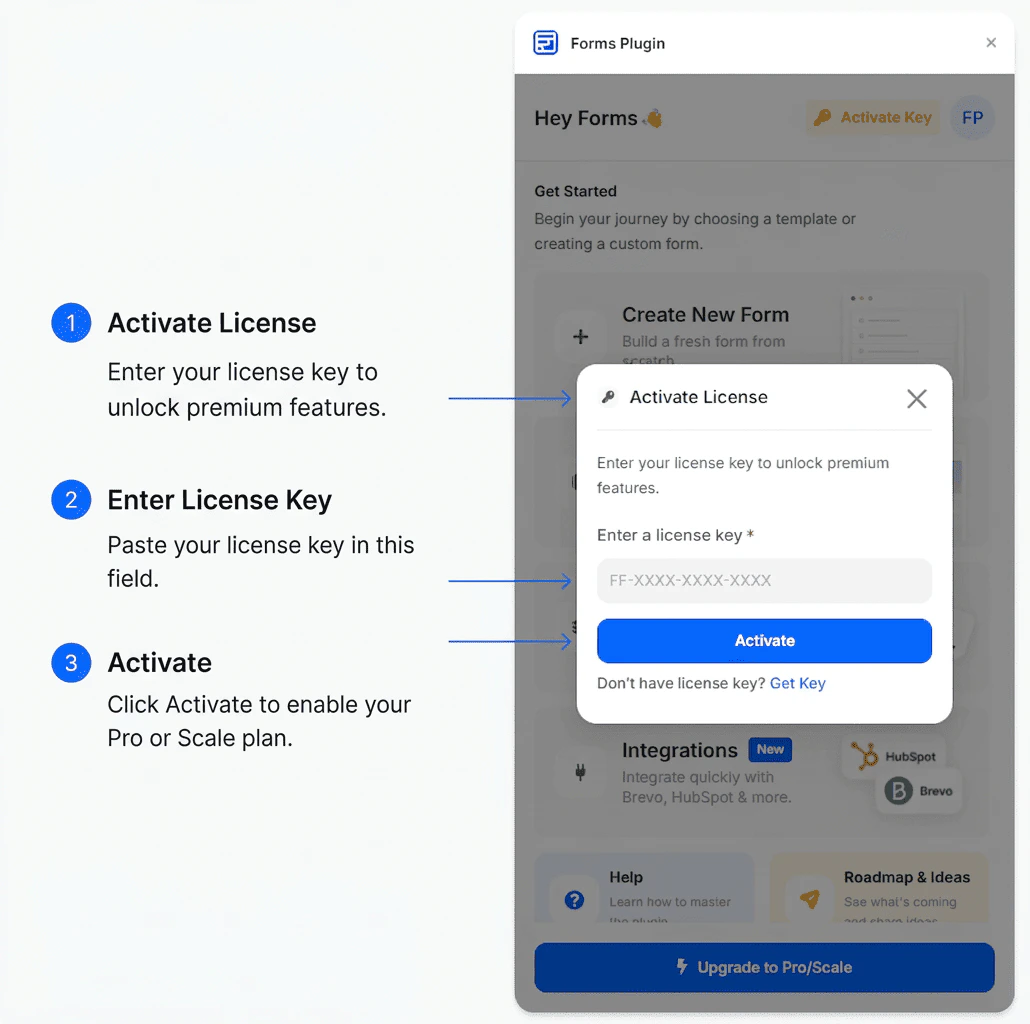
How to Activate Your License Key
- Open Forms Plugin in Framer
- If you are on the free Basic plan, you will see an Activate Key button in the plugin - click it
- A key entry field appears
- Paste or type your license key into the field
- Click Activate
Managing Your License Key
Once activated, you can view and manage your license key from within the plugin:- View your key - the key is displayed in masked form (e.g.,
XXXX-XXXX-XXXX-AB12) for security - Copy your key - use the copy button to copy the full key to your clipboard
- Remove your key - deactivate the key from this device or account if needed
- Open Forms Plugin in Framer
- Navigate to your account settings (click your avatar or the account section)
- Your active license key is shown with management options
Transferring Your License
If you need to use your license on a different Framer account or site, remove the key from the current account first, then activate it on the new account.Check the terms of your license for details on how many devices or sites your plan covers. The Commercial (Scale) plan allows unlimited websites. Personal (Pro) is limited to a single website.
Troubleshooting
| Issue | What to check |
|---|---|
| ”Invalid key” error | Make sure you copied the full key with no extra spaces |
| Key already used | Contact support if your key was used without your authorization |
| Features not unlocking after activation | Sign out and sign back in, then try again |
| Lost your license key | Check your purchase confirmation email or contact support |