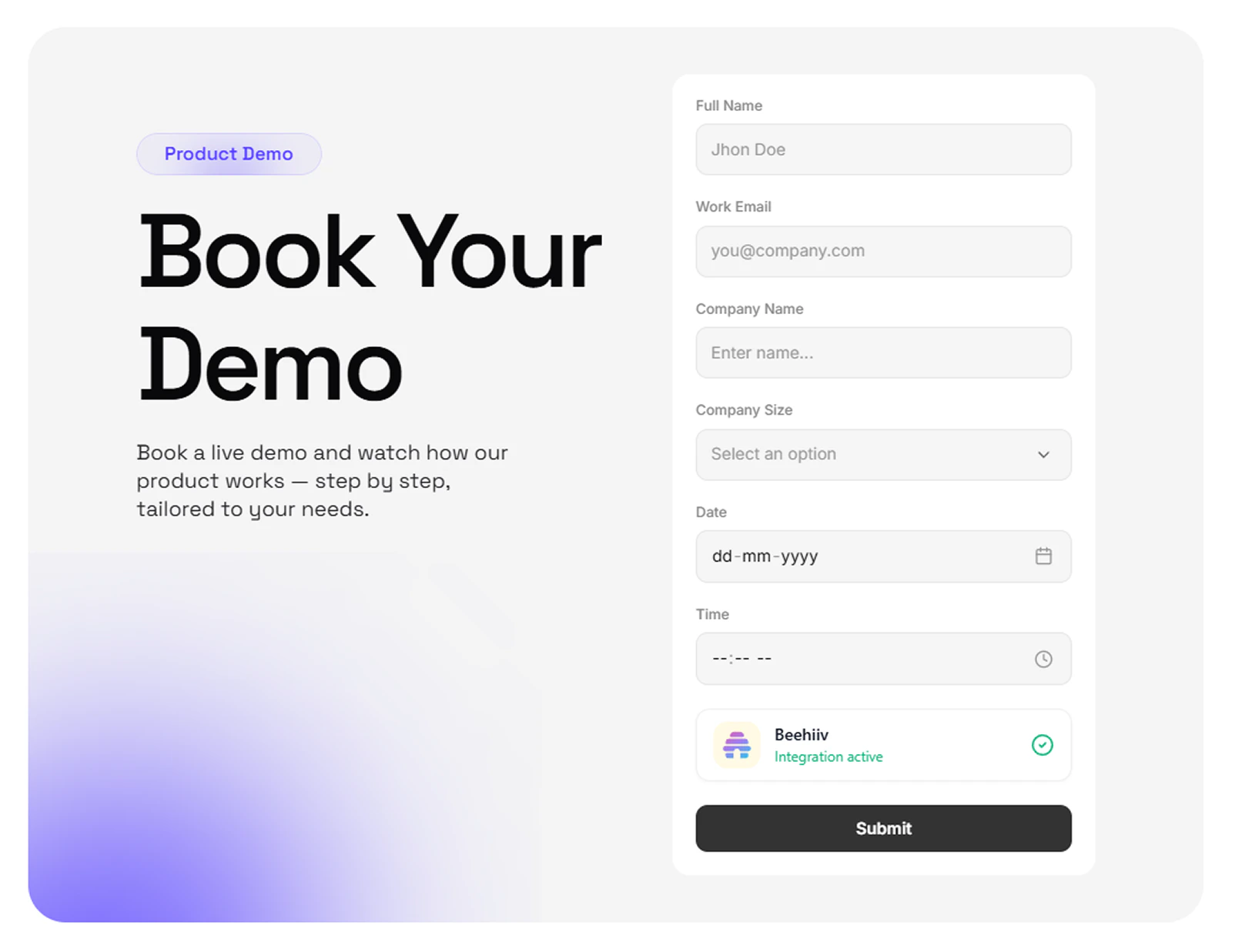
Connect Beehiiv with Framer Forms
Capture leads from your Framer forms and automatically add them to your Beehiiv publication using the Forms Plugin.
Step 1 — Get Your Beehiiv API Key and Publication ID
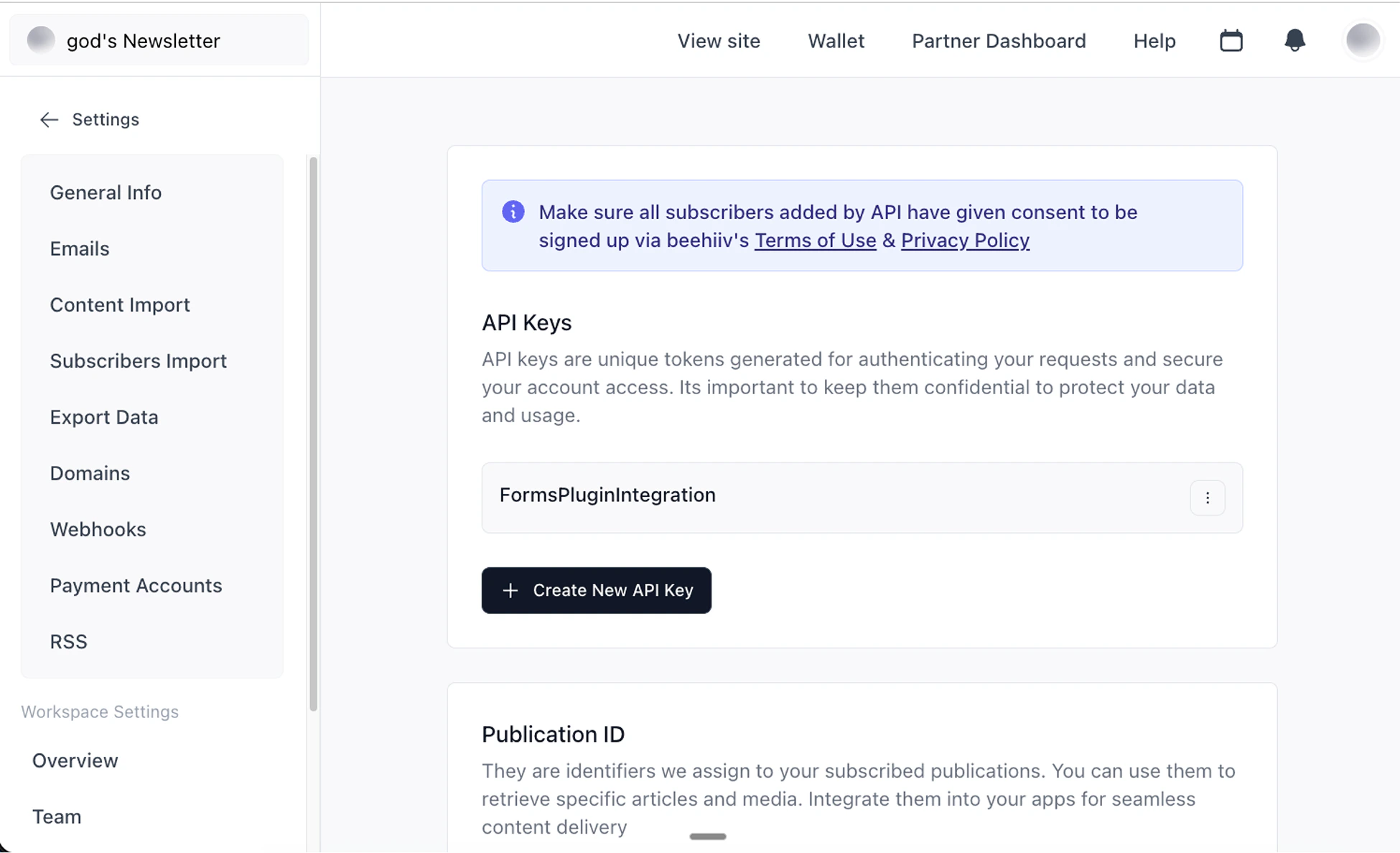
Before connecting Beehiiv to your form, get your API key and Publication ID from your Beehiiv account. These allow the Forms Plugin to securely send form submissions to Beehiiv.
- Login to your Beehiiv account
- Navigate to Settings → Integrations → API
- Generate a new API Key
- Copy the generated API key
- Note your Publication ID (visible in your Beehiiv settings)
Keep your API key in a secure password manager. Never share it publicly or commit it to a code repository.
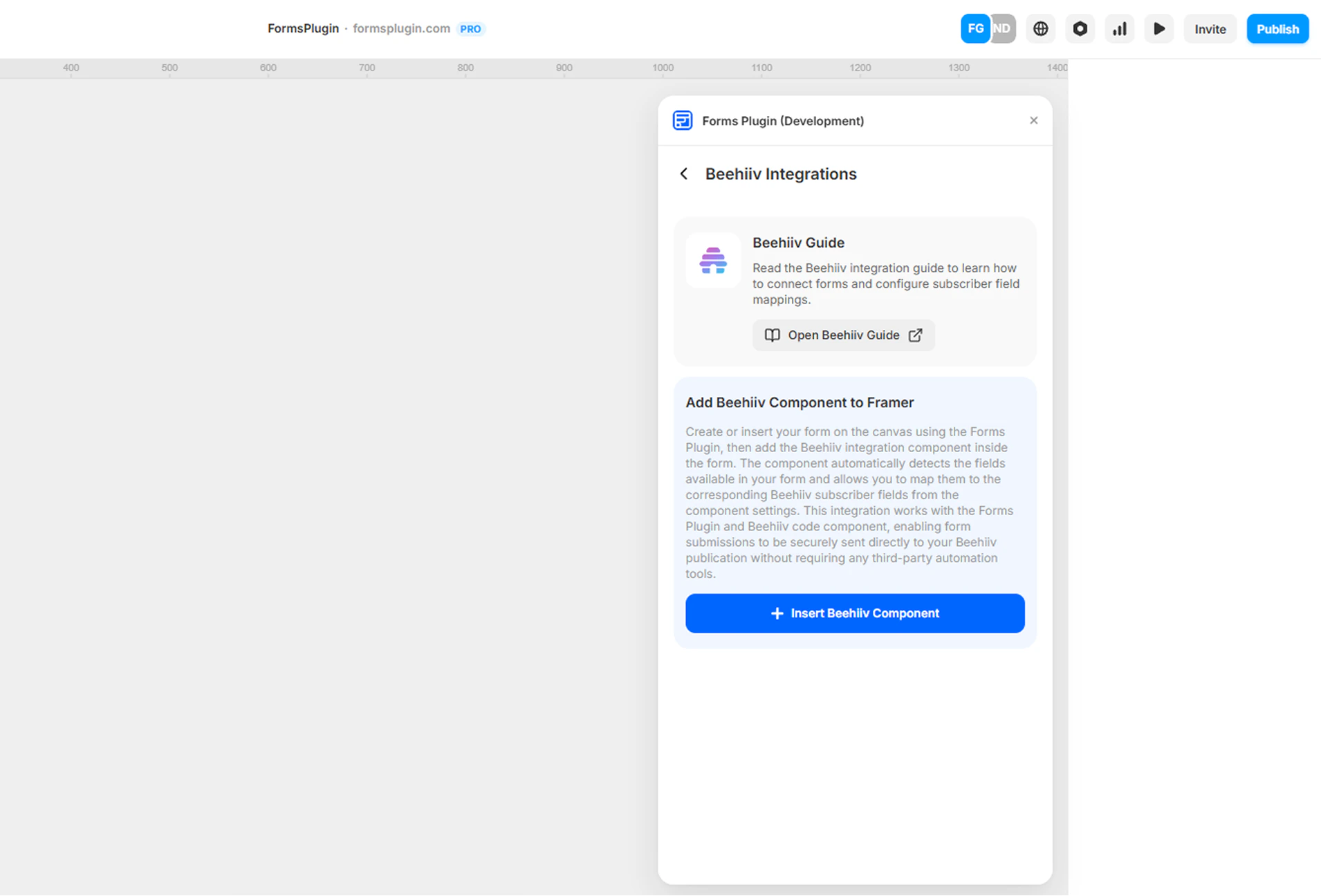
Select your form in the Framer canvas and insert the Beehiiv component.
The component connects your form to Beehiiv and automatically detects the form fields in your form layout.
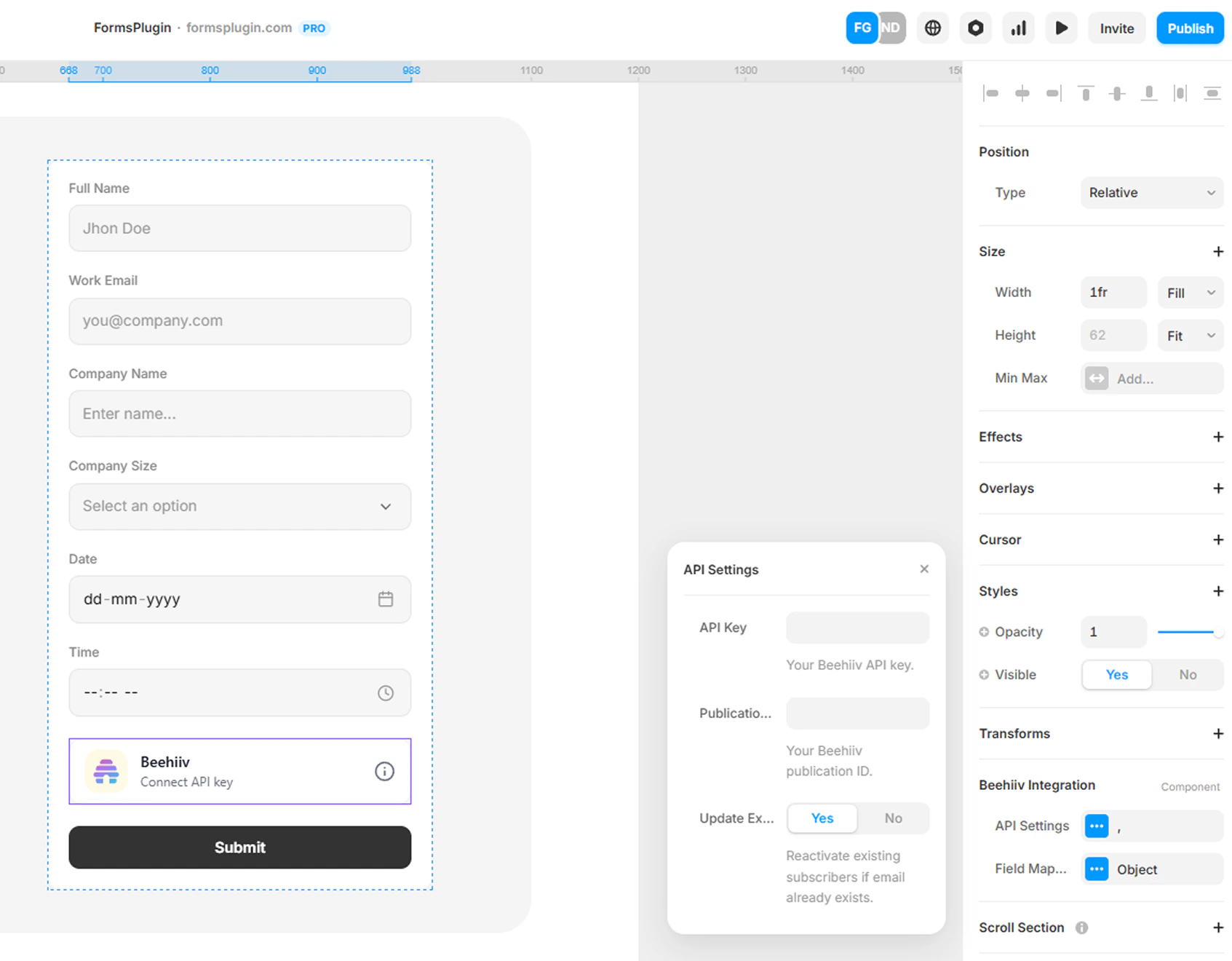
After inserting the Beehiiv component, configure the API settings in the component properties panel.
- Select the Beehiiv Integration component in your form
- Open the properties panel on the right side
- Paste your Beehiiv API Key
- Enter your Publication ID
Required Fields
- API Key — Paste the API key generated from your Beehiiv account.
- Publication ID — Enter your Beehiiv Publication ID.
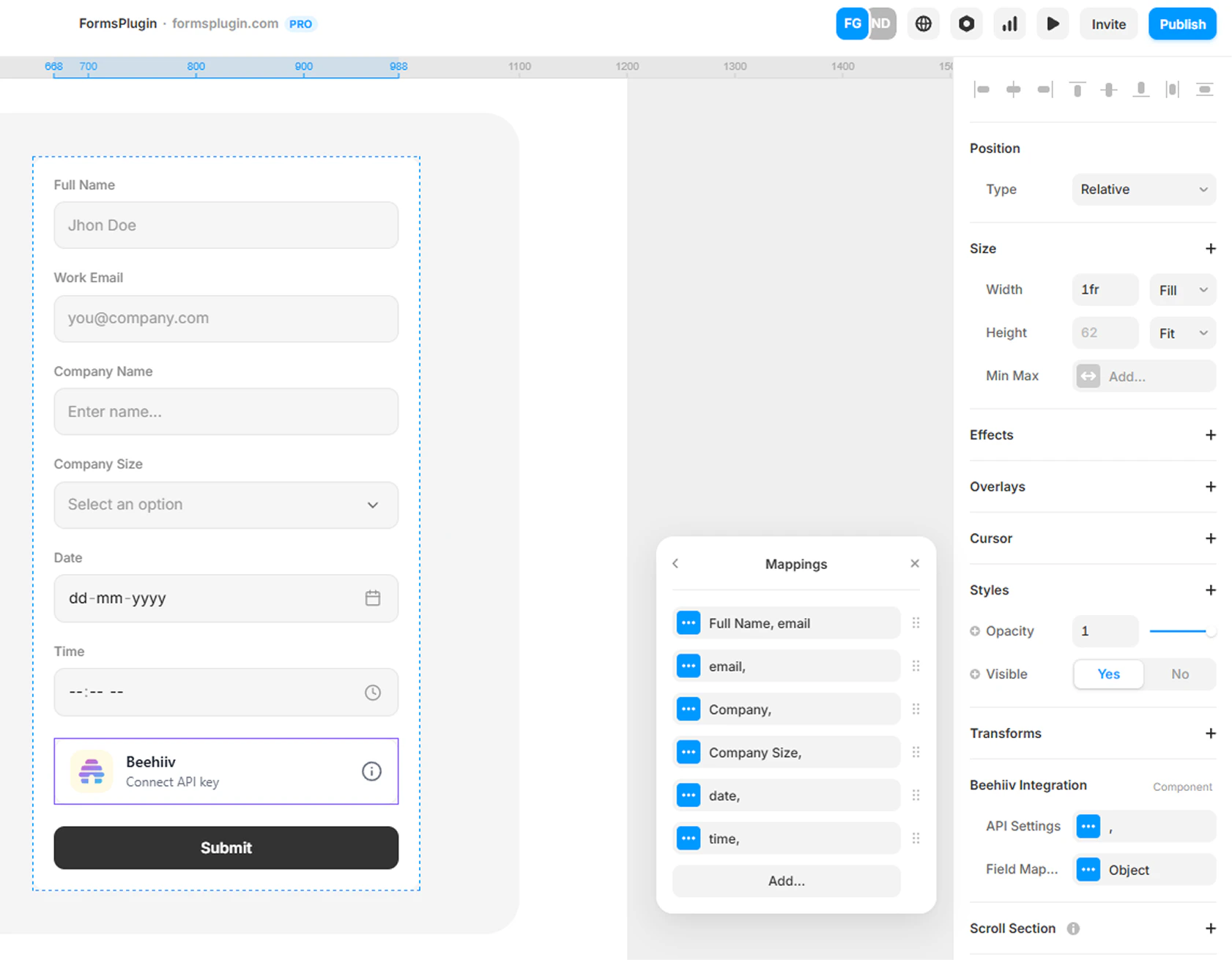
Map your form fields to Beehiiv subscriber attributes.
The component automatically detects your form field names. You simply connect each field to the correct Beehiiv attribute.
Example Mapping
| Form Field | Beehiiv Attribute |
|---|
| email | email |
Step 5 — Result
When a user submits the form, their details will automatically be added as a subscriber to your Beehiiv publication. You can verify new subscribers in your Beehiiv Dashboard under Audience → Subscribers.
Next Steps