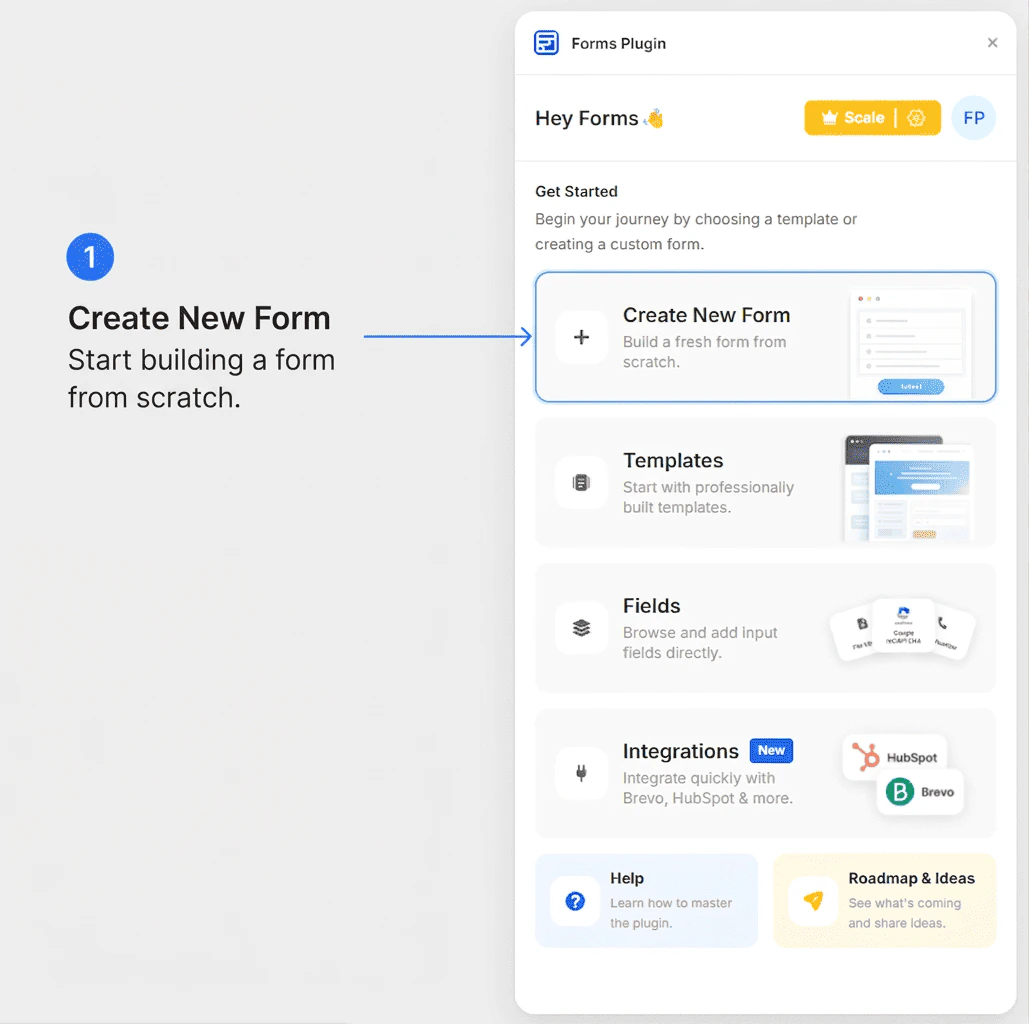
Create a New Form
The Create New Form option is the fastest way to get a working form onto your Framer canvas. It inserts a blank form component that you can fully customize with your own fields, labels, and styling.
- Open Forms Plugin in Framer
- On the home screen, click Create New Form
- The Configure your form screen appears - choose the basic structure of your new form:
- Single-Step Form - a standard form where all fields appear on one screen
- Multi-Step Form - a stepped form with multiple screens, a step indicator, and Next / Previous / Submit navigation
- Click the card for the structure you want - the form component is inserted directly onto your Framer canvas
- The component is automatically selected - you can reposition or resize it like any other element
Make sure your target frame or page is selected before creating a new form. The component will be inserted into the currently active frame.
What Gets Inserted
When you click Create New Form, Forms Plugin adds a single-step form component to your canvas. This is a self-contained Framer component that:
- Renders a functional form in your published Framer site
- Accepts form fields that you add through the plugin
- Handles form submission automatically
- Supports styling via Framer’s built-in component controls
Once the form is on your canvas, you have two ways to customize it:
Adding Fields
- With the form selected, go to the Fields section in Forms Plugin
- Browse the Basic, Advanced, or CAPTCHA tabs
- Click a field type to add it to the form
Each field you add appears as a new row in the form component on the canvas.
Use Framer’s native design controls to adjust:
- Font, size, and color of field labels and inputs
- Background color and border radius of the form container
- Button text, color, and style for the submit button
- Spacing between fields
You can create a multi-step form in three ways:
- Configure screen - click Create New Form, then choose the Multi-Step Form card
- Build with AI - describe a multi-step flow in your prompt (see Build with AI)
- Templates - insert a ready-made multi-step layout from the template library
Next Steps